The setup: Create a DeepZone profile called Instagram Check Windows, add instagram.com under Blocklist → Sites, and set the hours when you want the site unavailable. The example here uses Monday–Friday, 09:00–17:00. Keep posting and client-message time outside those hours.
This is a whole-site rule. Instagram browsing, profile pages, Reels, posting and Instagram direct messages share the same access boundary. It is useful when opening Instagram is the distraction; it does not selectively remove Reels while leaving the rest of Instagram available.
Test environment: DeepZone 2.0.0 build 24, Pro Lifetime, on macOS 26.6.2 (25G83); Safari 26.6.2 (21624.5.1.11.3), using a new private window without signing in. DeepZone’s current pricing page lists website blocking and basic schedules in Free; this recipe does not require Lock Mode, native-app blocking or keyword rules. Free-tier behavior was not separately tested.
Observed on October 19, 2026: Instagram’s root address, a public profile path and the direct-inbox path were reachable before the unlocked test and refused new connections during the active block. A direct Instagram profile visit in a logged-out Safari private window showed DeepZone’s interruption page. MDN documentation, CNN and DeepZone remained reachable. Signed-in messaging and installed web apps were not tested.
The rule and the access you keep
Start with the parent domain, instagram.com. There is no need to guess a collection of Instagram media or Meta infrastructure hosts before testing. A small list also makes it easier to see which rule is responsible when a useful page stops working.
| Setting | Value | Purpose |
|---|---|---|
| Profile name | Instagram Check Windows | Keep this habit separate from other blocklists. |
| Mode | Block these | Block listed sites rather than enabling an allow-only list. |
| Website entry | instagram.com | Apply a whole-site Instagram rule. |
| Recurring hours | Monday–Friday, 09:00–17:00 | Protect an example workday; use hours that fit your obligations. |
| Useful Instagram access | Before 09:00 or after 17:00 | Leave time for planned posting and messages outside the blocked window. |
| Testing | Unlocked | Check routes and restore access before committing to a longer session. |
“Outside the blocked window” means this profile is not applying its scheduled block. Another running profile or a manually started session may still block Instagram. Check the whole active setup before relying on an allowed window.
If you need Instagram for work at 11:00: a 09:00–17:00 block is the wrong schedule for that day. Split the hours around your required check, or choose a shorter focus period. Adding an Instagram DM path as an exception is not part of this recipe.
1. Create Instagram Check Windows
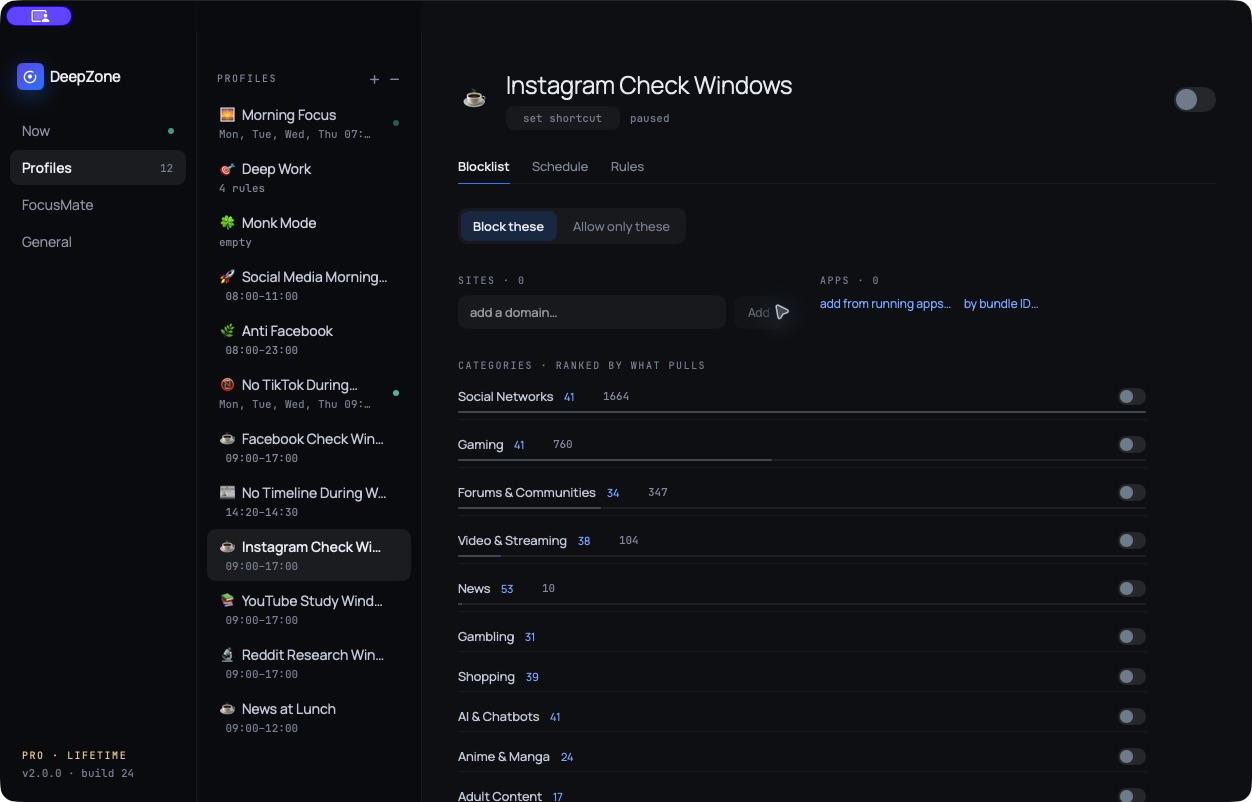
- Open DeepZone from the Mac menu bar and go to Profiles.
- Use the + control beside the profiles list to create a profile. Name it Instagram Check Windows.
- Keep the profile paused while preparing it. In Blocklist, select Block these.
- Under Sites, enter
instagram.comin the domain field and choose Add. - Leave categories, app rules and keyword rules out of this profile. Review any other profiles that might already block Instagram before starting the test.
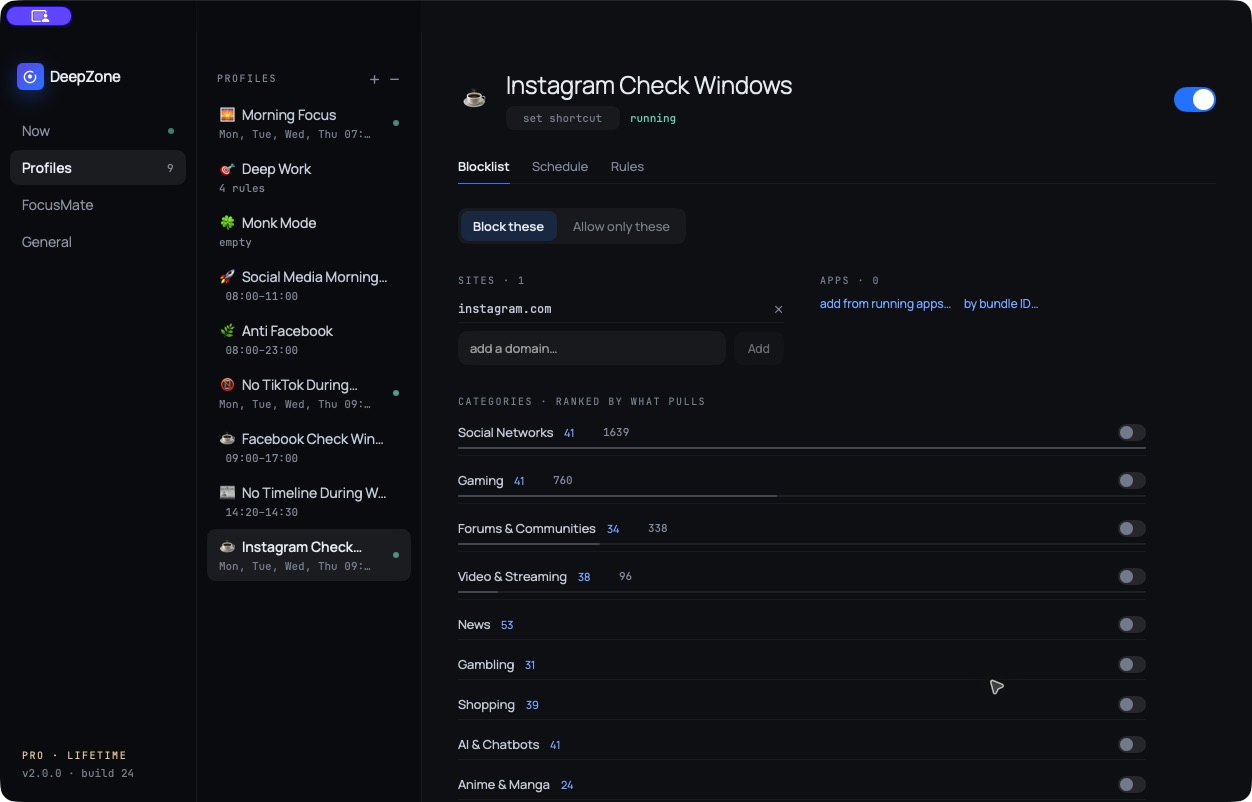
In this address, instagram.com is the domain and .com is the top-level domain, or TLD. www.instagram.com is a subdomain. A route such as /direct/inbox/ is a path on the site, not another domain to enter in the Sites field. The table below separates the actual rule from routes checked against it.
2. Test Instagram and a page you need
Start with an unlocked test that you can end immediately. First open Instagram with the profile paused to establish that the route is reachable. Then enable this profile and repeat the visit in a fresh tab. A site that was already unavailable before the test does not prove the block works.
Also open a work page that you need while the Instagram block is active. This checks both sides of the setup: the unwanted visit stops, while a useful destination stays reachable. A successful test on one work site does not establish that every work service will work.
In our October 19 test, direct HTTPS requests to instagram.com, www.instagram.com/instagram/ and www.instagram.com/direct/inbox/ returned a page before the block and were refused while it was active. The inbox request reached a login screen before blocking; nobody signed in, read messages or submitted an account action. These network observations are recorded separately from the screenshots.
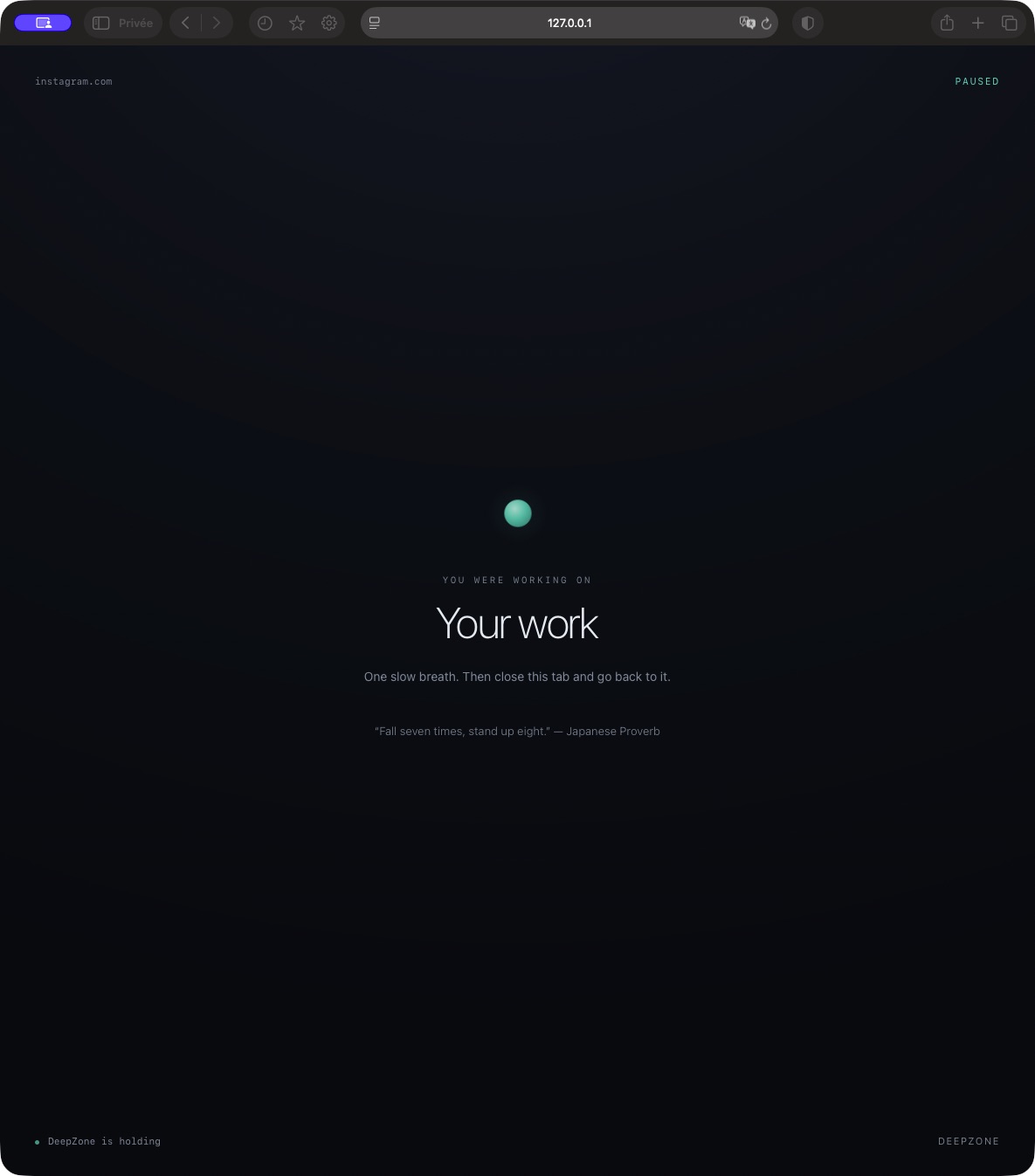
https://www.instagram.com/instagram/ in a logged-out Safari private window opened DeepZone’s local interruption page at 09:22 CEST on October 19. This capture came from the Instagram visit, not a manually opened product reference.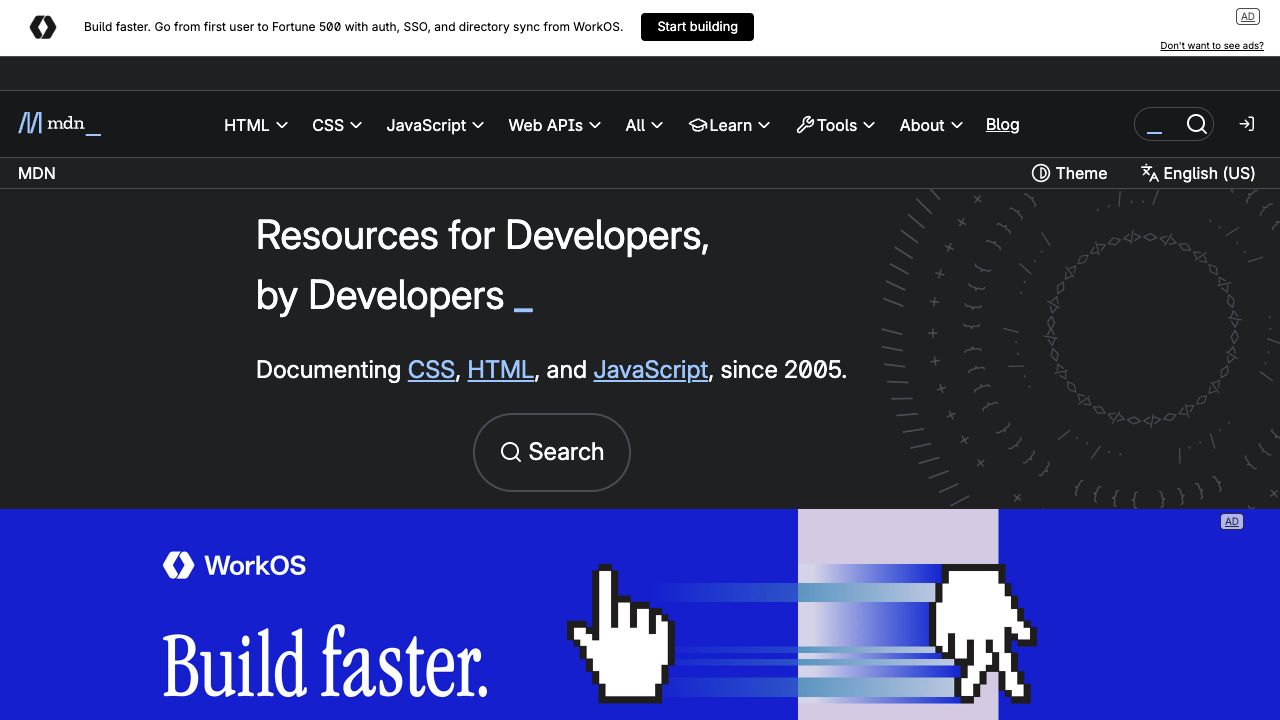
developer.mozilla.org/en-US/ loaded in the in-app browser during the active test. Separate requests to this documentation site, edition.cnn.com and deepzone.app also returned HTTP 200.Finally, pause the test profile and revisit the same Instagram route. That restoration check helps distinguish a temporary profile effect from an unrelated network or Instagram login problem. Do not send a message or publish a post simply to test access.
3. Schedule work and Instagram time
After the unlocked test, choose Schedule → Add hours. Enter 09:00 as the start and 17:00 as the end, then select Mon, Tue, Wed, Thu and Fri. The captured example leaves Saturday and Sunday unselected.
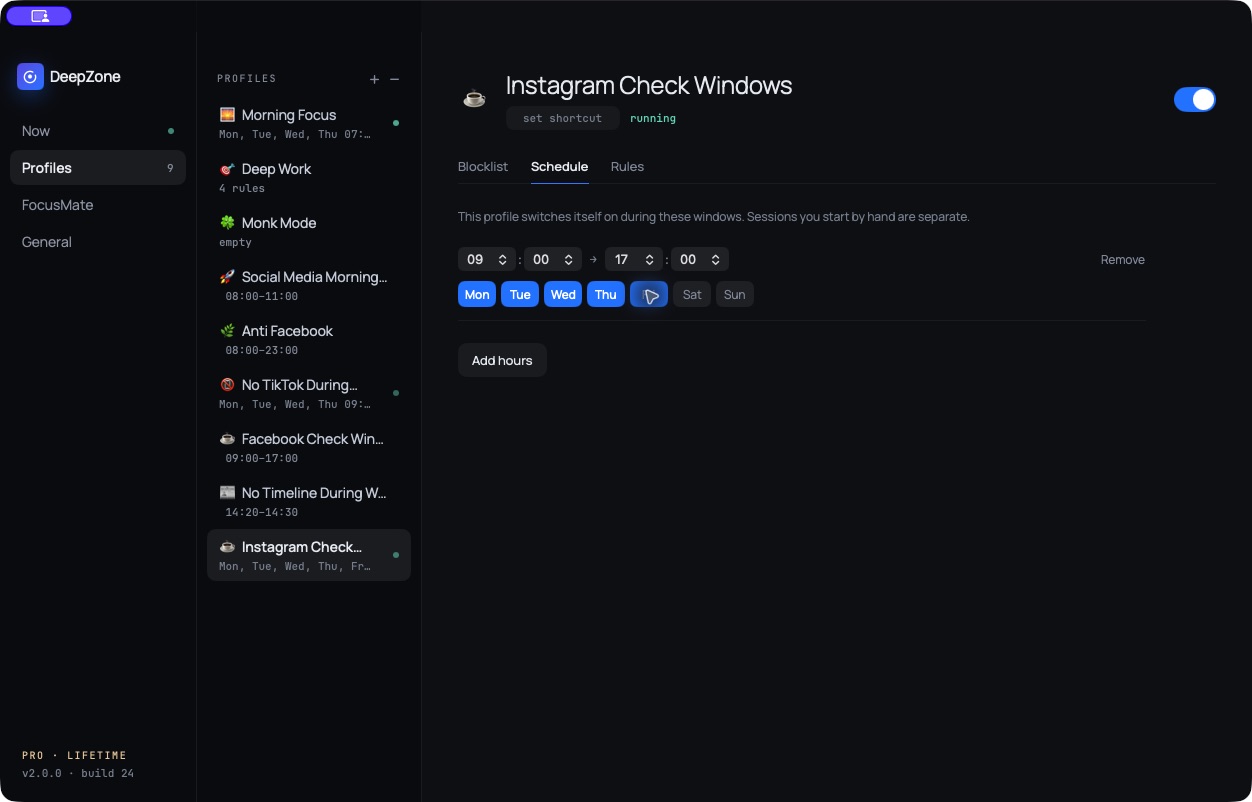
For example, reserve 08:45–09:00 for planned posts and 17:00–17:15 for client messages. These are suggested appointments, not extra rules shown in the screenshot. If your work requires a midday Instagram check, add separate blocked periods around it and test the gap.
Before relying on recurring hours, try a short unlocked schedule that begins and ends while you can watch it. Confirm that the profile changes state, the Instagram route stops loading during the window, and access returns afterward. The app’s schedule screen explicitly notes that sessions started by hand are separate, so end an overlapping manual session when checking the boundary.
Scheduled-end result: For the reversible test, the example hours were temporarily changed to Monday 09:00–09:25, with other days disabled. At 09:25:12 CEST on October 19, fresh requests to Instagram’s root, public profile path and inbox path returned HTTP 200 again; the inbox still redirected to login. This checks a short scheduled ending, not an entire 09:00–17:00 workday.
Routes and observed results
The only site entry in this recipe is instagram.com. The other Instagram rows below are test destinations, not a longer blocklist. Results must be read with the browser and access state in which they were observed.
| Entry or route | Type and purpose | Block or keep | Observed result |
|---|---|---|---|
instagram.com | Parent domain; the actual Sites entry | Block during the profile window | HTTP 200 after redirect before the test; connection refused while active. |
www.instagram.com | Subdomain; destination of the root redirect and host for the two paths below | Block through the parent rule | The tested profile and inbox paths were refused while active. A separate www-root request was not recorded. |
/instagram/ | Public profile path on www.instagram.com | Block during the profile window | HTTP 200 before the test; refused during the network test. A Safari private-window visit showed DeepZone’s interruption page. |
/direct/inbox/ | Instagram path; DM entry route | Block during the profile window | Reached the login page before the test; connection refused while active. Signed-in messages were not tested. |
developer.mozilla.org | Separate documentation site used during focus time | Keep | Loaded in the browser while the block was active; direct request returned HTTP 200. |
| Instagram after 09:25 | Root, profile and inbox routes retested after the short schedule ended | Keep for planned checks | All returned HTTP 200 in checks beginning at 09:25:12 CEST; the inbox redirected to login. |
The private-window observation covers the direct profile URL in Safari. Already-open-tab, external shared-link and browser-installed-app checks still need their own observations. A root-domain result alone is not evidence for every browser or navigation path. Treat untested cases as checks to perform on your Mac.
Troubleshooting the setup
Instagram still appears in an open tab
An already-rendered page can still show content. Reload it, open a fresh tab and follow a new link before deciding that the rule failed. Check that Instagram Check Windows says it is running, that instagram.com is in Sites, and that the profile is in Block these mode. Record the exact route and browser if it still loads.
A shared link behaves differently
Look at the final hostname and path after the redirect. Test a real link you use, including a direct profile or message link. Do not add broad Meta media or CDN hosts speculatively; that can affect unrelated services. If a route remains reachable, keep it recorded as an unresolved case until it has been reproduced and addressed.
Instagram stays blocked after 17:00
Check the Mac’s current time, the selected weekday and the state of every running DeepZone profile. A different profile may block Instagram directly or through a social category. A session started by hand is separate from the recurring window. End the relevant unlocked test state and reload the page; do not change an unrelated work profile without understanding why it is active.
You need messages or posting during the day
Move the blocked periods around that work. This profile cannot distinguish a client message from an unwanted Instagram visit on the same blocked site. A logged-out inbox page loading outside the block also does not prove that every signed-in business workflow works. Test the read-only routes you actually need before relying on the schedule.
You use a private window or an Instagram web app
Repeat the test in that exact context. A browser-installed Instagram app, a separate native app and a browser tab are different test cases. This guide’s site rule is not a claim that a separate Mac app or your phone is blocked. Leave Lock Mode off while investigating differences.
Common questions
Can I block only Instagram Reels?
Not with this whole-site recipe. Blocking instagram.com removes access to the site during the active window, including useful Instagram routes. This guide does not establish selective Reels enforcement or an exception that preserves Instagram messages.
Can I still post and reply to clients?
Plan that work outside the blocked hours, or leave a deliberate gap in the schedule. Other active blocks can still interfere. Signed-in posting and message delivery were not tested for this tutorial; no account action was submitted.
Do I need DeepZone Pro?
The official product page lists website blocking and basic schedules in Free. The captures here were made on a Pro-enabled Mac, so they are not a separate Free-tier test. Pro-only controls are not needed for the unlocked, single-site configuration described here.
Does this also block Instagram on my phone?
This is a Mac setup. Do not assume a rule on this Mac changes access on another device. If switching to your phone is part of the habit, plan that device separately.
Do I need to add every Instagram subdomain?
Start with instagram.com and use the observed route results. Add another hostname only if your current test establishes that it is needed. Paths such as /direct/inbox/ and /reels/ are not separate domains, and guessed entries are not proven rules.
Give Instagram a defined place in your day
The useful outcome is a clear boundary: work without opening Instagram during the period you chose, then return deliberately when posting or messages are due. Keep the first session unlocked, verify the access you need, and adjust the hours to your real responsibilities.
For a similar setup on another platform, follow the Facebook check-windows tutorial or the X and Twitter focus-time tutorial. The social-media blocking hub covers planning a broader Mac blocklist.
Sources and test notes
- DeepZone official product page — profiles, recurring hours, website blocking and the Free/Pro feature descriptions; checked October 19, 2026.
- Instagram Help Center — checked October 19, 2026, but redirected to an Instagram login screen in the research session. It was not used as evidence for DeepZone enforcement or signed-in message access.
The profile and schedule images are direct captures of the installed DeepZone app. The interruption screenshot records a real Instagram profile visit in a Safari private window. Other browser captures used a logged-out in-app browser, alongside fresh HTTPS route checks. Chrome and installed web apps were not separately validated. Private route logs, capture origins and test details are kept outside the public article folder.