twitch.tv under Blocklist → Block these, and schedule the hours when you want Twitch unavailable. In our November 20 test, fresh browser contexts could not open the main site, a channel, a clip or an embedded player while the profile ran. MDN documentation remained accessible.A work schedule can leave room for deliberate evening viewing. The useful question is whether your chosen rule stops the routes you actually use, while your work remains available. This guide shows one rule, the real test results, and a short schedule check you can repeat before committing to longer hours.
Test environment: DeepZone 2.0.1, build 33, on macOS 26.6.2; isolated, signed-out headless Google Chrome 157.0.8103.79. The installed app had Pro. DeepZone currently lists website blocking and basic schedules in Free; we did not separately test a Free installation or its limits. Safari, other browsers, native clients and account-only tools were not tested.
1. Create “Twitch After Work” and pause it
Open Profiles, choose +, name the profile Twitch After Work, and select Create. In this build, our empty new profile started running. Switch its top-right toggle off before configuring it and confirm the status says paused. Leave Lock Mode off for these checks.
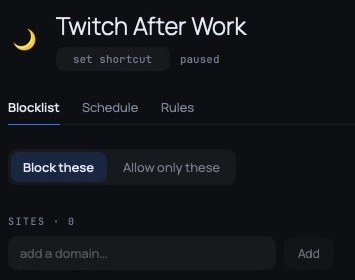
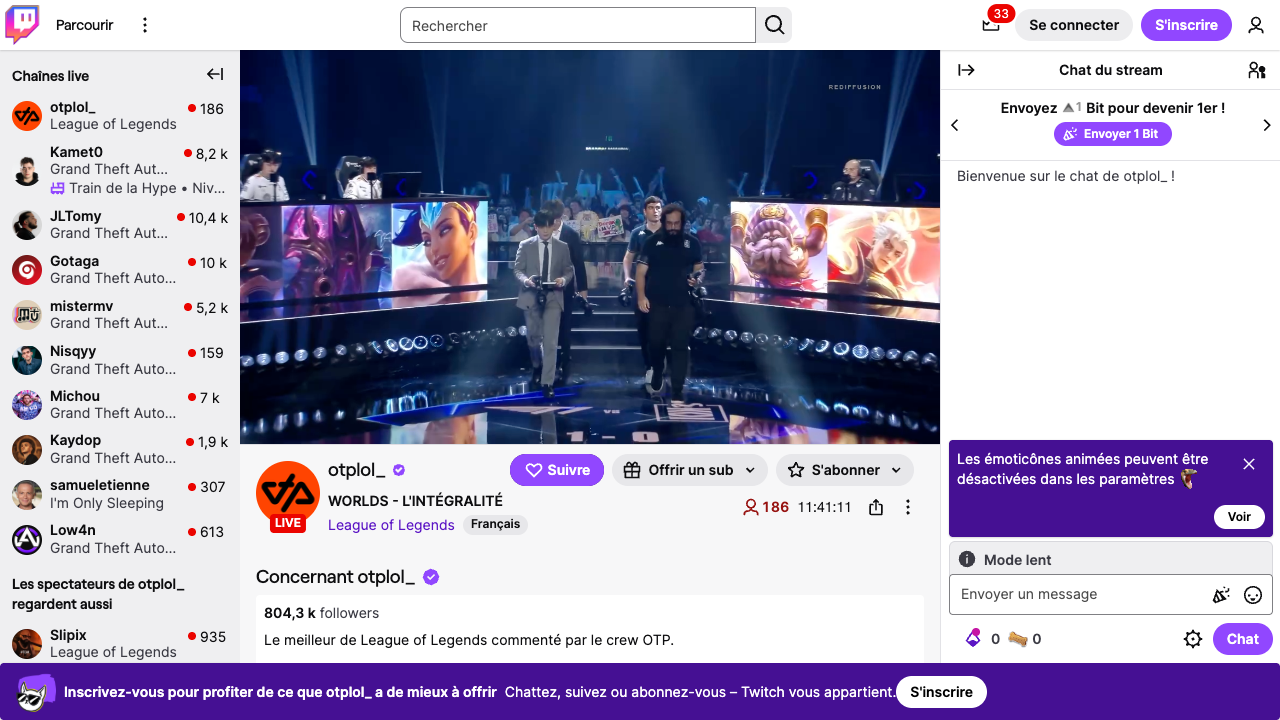
Before changing access, open a work page you need and a public Twitch channel. Record whether the stream really plays. A loading shell or a sign-in page is not proof of usable video. If Twitch is part of your job, keep streaming, moderation and client work outside the blocked hours until you have separately tested those exact tasks.
2. Add twitch.tv, then test before adding more
Choose Blocklist → Block these. Enter twitch.tv in add a domain… and select Add. Our demonstration used this one site rule, with no category or app rules. Do not choose Allow only these: that is a different kind of setup.
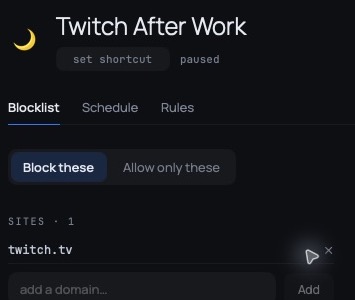
twitch.tv. The hosts below were tested destinations, not additional entries. Open full-size rule detail.twitch.tv is a domain; www.twitch.tv, clips.twitch.tv and player.twitch.tv are subdomains. The .tv suffix is the top-level domain. A channel name or /clip/… after the hostname is a path. This is a whole-site recipe, not a way to block selected channels while keeping others on the same host.
We started with the parent domain and needed no extra entries for the fresh-context routes tested here. Do not add guessed media or delivery hosts to make a longer-looking list. A course or work page can remain reachable while its embedded Twitch video is unavailable.
3. Test the actual routes, including an existing stream
Turn on the profile with its toggle. Keep the session unlocked. Test your already-open channel, a fresh navigation, a private window, a shared clip and any embedded player you use. Then reload your required work page. In our run, the network requests below were refused in fresh isolated contexts; the browser displayed a connection error, not an automatic branded redirect.
Observed November 20, 2026. Horizontal scrolling is available inside the results table on narrow screens.
| Destination or state | Purpose | Observed result |
|---|---|---|
twitch.tv | Parent domain; block | Fresh navigation refused during the schedule. |
www.twitch.tv/otplol_ | Public channel; block | Played before the test. A fresh private context was refused while active. |
clips.twitch.tv/… | Actual shared clip; block | The clip played before activation. Fresh navigation was refused while active. |
player.twitch.tv | Real embedded stream; block | The player played in a local test page before activation; its fresh iframe request was refused during the schedule. |
developer.mozilla.org | Documentation; keep | The HTML documentation page loaded while the Twitch profile ran. |
| Already-open stream / same-context tab | Existing access; check separately | Stream kept playing. A new tab and reload returned HTTP 200. Existing access was not reliably interrupted. |
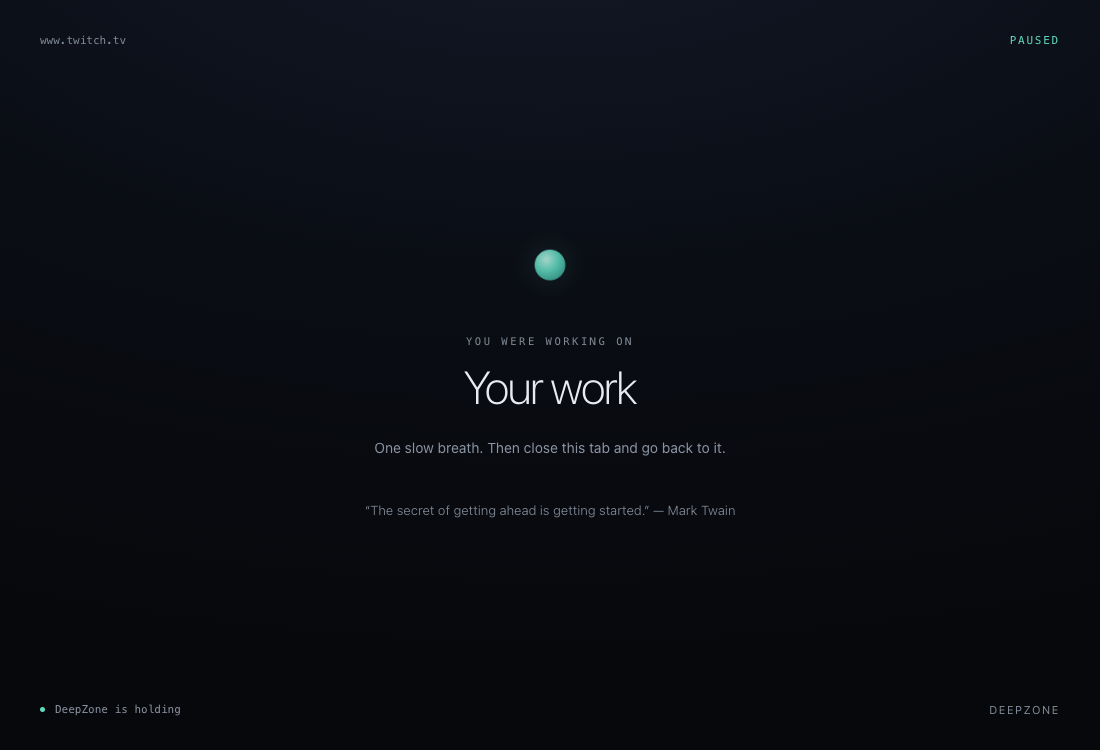
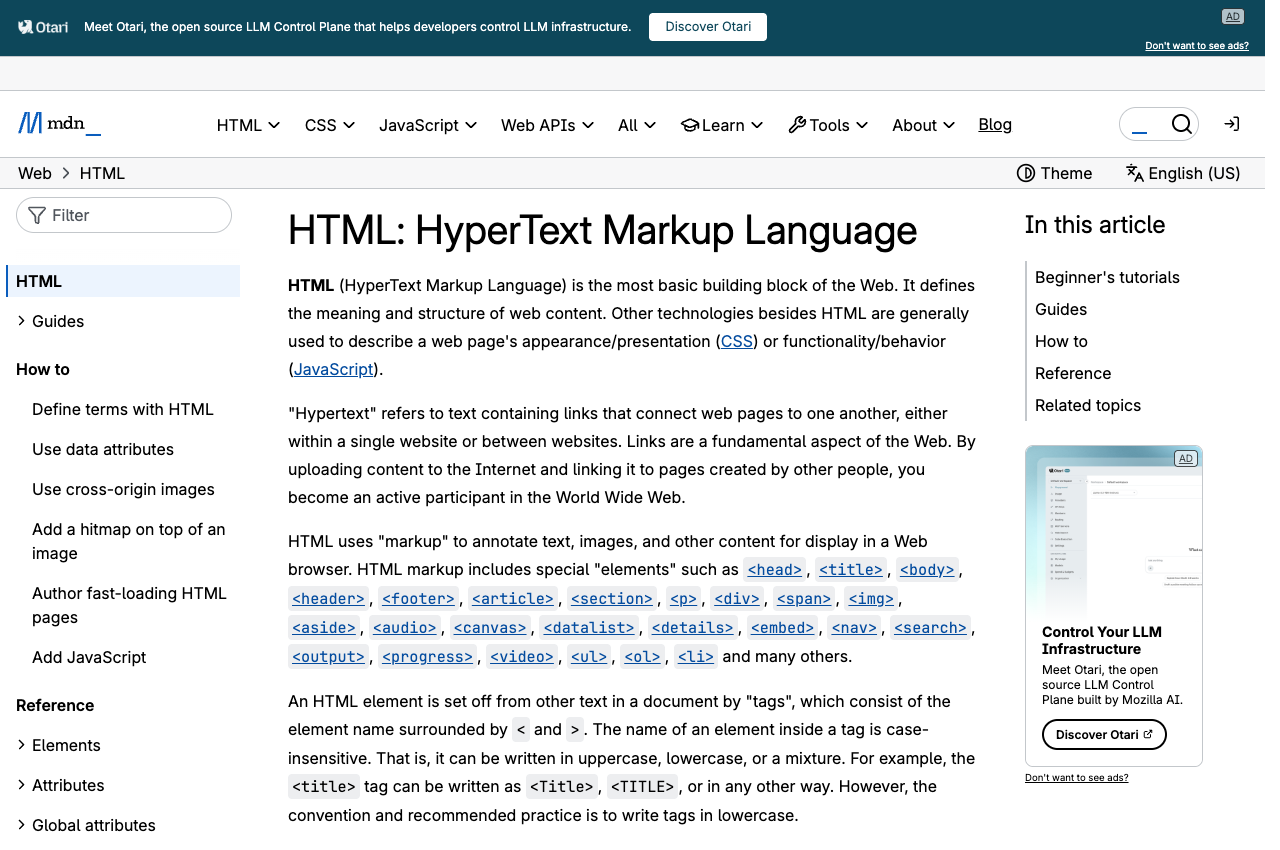
For the existing-stream check, playback time advanced from about 94 to 128 seconds between observations after manual activation. That shows continued playback during this test; it does not identify how much was buffered or prove how long the stream could continue. A reload still returned the channel page. Do not describe a continuing stream as successfully stopped.
4. Choose blocked hours and preserve viewing time
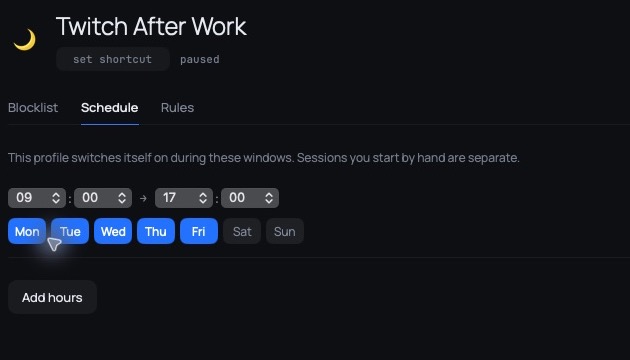
In Schedule, select Add hours, choose the start and end times, and select the days you need. The highlighted days in the screenshot are Monday through Friday. A 09:00–17:00 block is an editable example, not a recommended workday or a tested full-week commitment. Leave your deliberate viewing period outside the block.
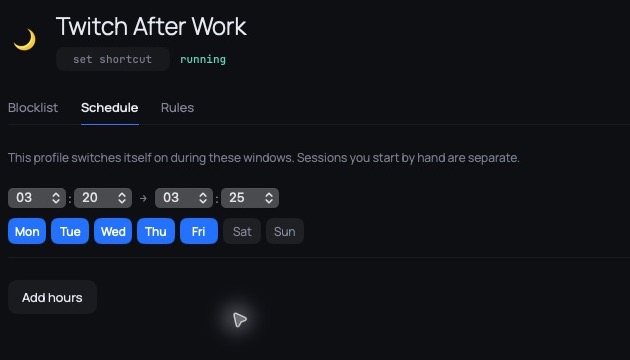
Start with a short interval you can watch end. Our test used 03:20–03:25 Europe/Paris on November 20. The profile changed from paused to running at the start, and new network probes changed from reachable to refused. At the end, the app changed to paused and probes became reachable again. Subsequent fresh checks loaded the channel, clip and embedded player, with video playing in each.
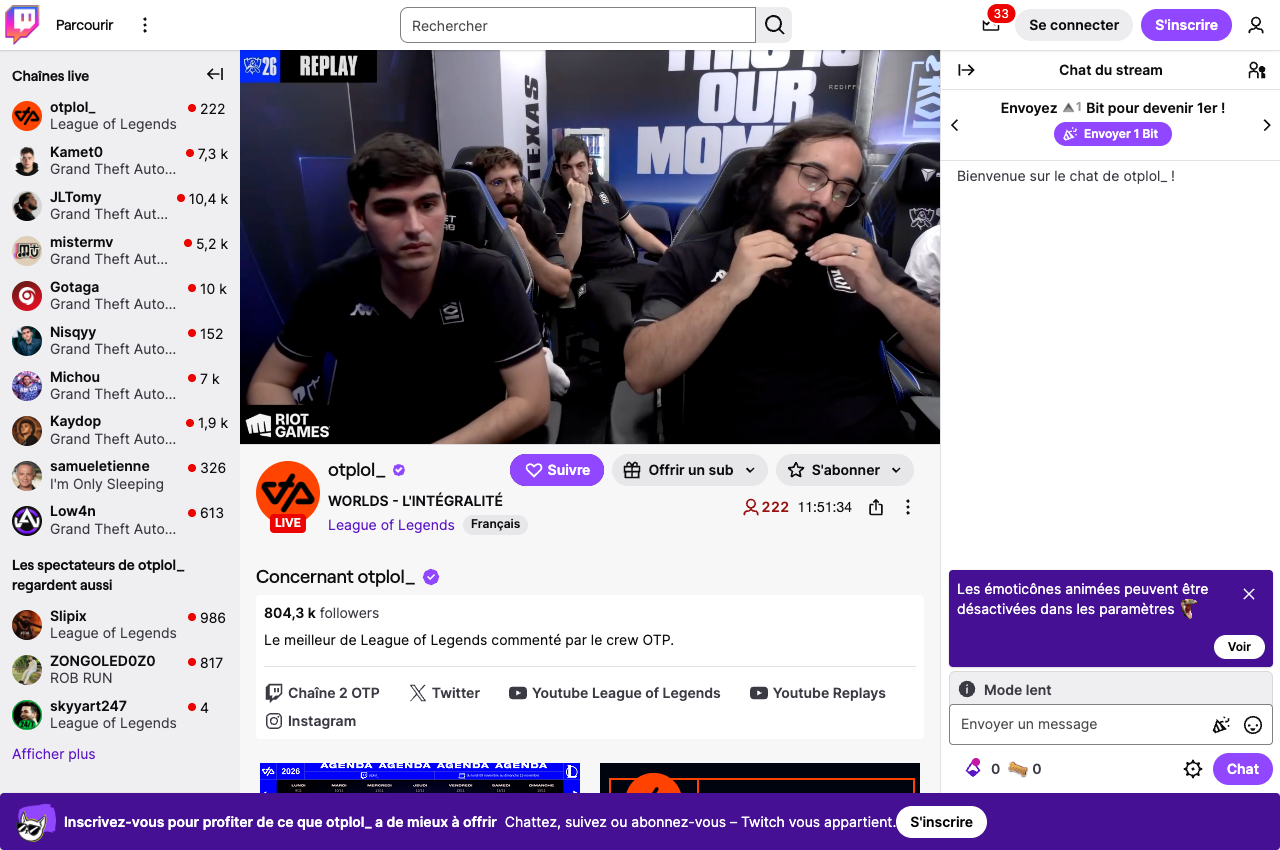
After your test, confirm that the profile is paused and the expected channel plays again. Remove the temporary test hours before adding your intended schedule. We removed our demonstration schedule and left its profile paused. The app explains that manually started sessions are separate from scheduled hours; check those sessions and other profiles if access does not return.
When a stream still plays
Why did an active stream or reload survive?
That happened in this test. Fresh contexts were blocked while existing browser access survived. We did not isolate the cause, so we cannot attribute it solely to buffering, caching or reused connections. A full restart of our isolated Chrome browser during the active schedule produced a refused channel navigation. Save your work before restarting a browser; repeat the test yourself before relying on the schedule. A new tab alone did not resolve the existing-session escape in our run. If the unwanted route still opens, treat your setup as unvalidated and report the exact route, version and session state.
Will this leave Twitch chat, creator tools or a work stream open?
Do not count on same-site work access during a whole-site block. This guide does not validate an exception for chat, moderation, broadcasting or account management. Put required Twitch tasks in an access window and test them yourself before using the profile during work. It also does not make changes on a phone or another computer.
Should I add clips and player hosts separately?
Not on the strength of this test: the single parent-domain rule refused both in fresh contexts. If a real route still works on your machine, record its actual destination and reproduce the problem first. Adding another host should answer an observed gap, not a guessed one.
What if access stays blocked after the end?
Check the profile status, current day and hours, manually started sessions, and other running profiles. In a reversible test, pause the demonstration profile and open a fresh page again. Preserve your work routes and avoid Lock Mode while diagnosing a mismatch.
Sources and test limits
- DeepZone product and plan information and official setup documentation, checked November 20, 2026. Website blocking, profiles and recurring schedules; this guide uses no paid locking feature.
- Twitch Developers: Video & Clips, checked November 20. Documents the player and clip embed hosts and the required parent parameter. Our local test page used the real Twitch player; documentation alone does not establish blocking.
- Twitch: Supported Browsers, checked November 20. Platform browser support is separate from the DeepZone results. Our evidence covers only the Chrome configuration stated above.
All instructional app images are genuine captures from this run, faithfully cropped to remove unrelated profiles and local history. Browser outcomes are actual captures, and the interruption reference is labeled separately. No fixture render, generated image, estimated time saving or health outcome is used as recipe evidence.
For related setups, see the tested YouTube work-window guide, Instagram check windows, and the Mac social-media blocking hub. To choose what you want to reduce first, use the practical social-media plan.